Who this guide is for
Readers who want to know whether their phone, TV, TV Box, Fire TV Stick, or PC is a good fit before trying the APK.
Not the best path for:
Anyone looking for a direct iPhone, Apple TV, Samsung Tizen, or LG webOS install. Those paths usually need different hardware.
What you need before you start
- Your device model or operating system name
- A quick check for available storage
- A stable Wi-Fi connection if you plan to download immediately
Step-by-step instructions
Step 1
Check whether the system is Android-based
If your device runs Android, Android TV, Google TV, or Fire OS, the APK route is usually the right starting point.
Step 2
Pick the install channel that matches the device
Phones and tablets usually download the APK directly. TV devices may rely on a browser, Downloader, or file manager.
Step 3
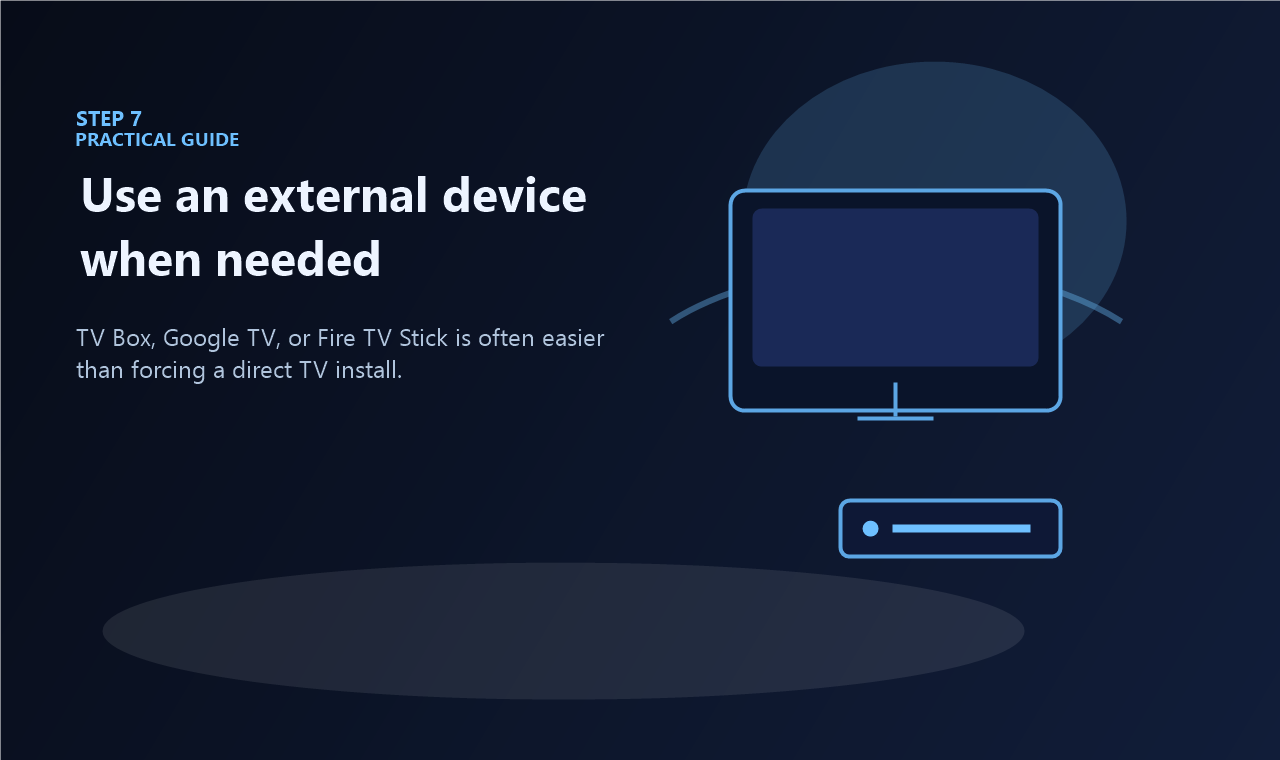
Use an external device for non-Android TVs
Samsung Tizen and LG webOS do not normally use the same direct APK flow. A TV Box, Google TV dongle, or Fire TV Stick is the easier route.
Step 4
Use an emulator when you need desktop access
PC access is usually done inside an Android emulator such as BlueStacks or LDPlayer instead of a native Windows installer.
Common errors to avoid
- Choosing a phone APK and trying to install it on a TV device with a different architecture.
- Assuming every Smart TV can install APK files directly.
- Skipping storage checks on low-capacity Fire TV Stick or TV Box hardware.